

PowerVault™ Quick Start
Everything you need to get PowerVault ready for your first production.
Follow the steps below to unpack your system, install the correct adapters, and learn the basics. If you prefer, you can also watch the Quick Start video further down the page for a complete walkthrough.
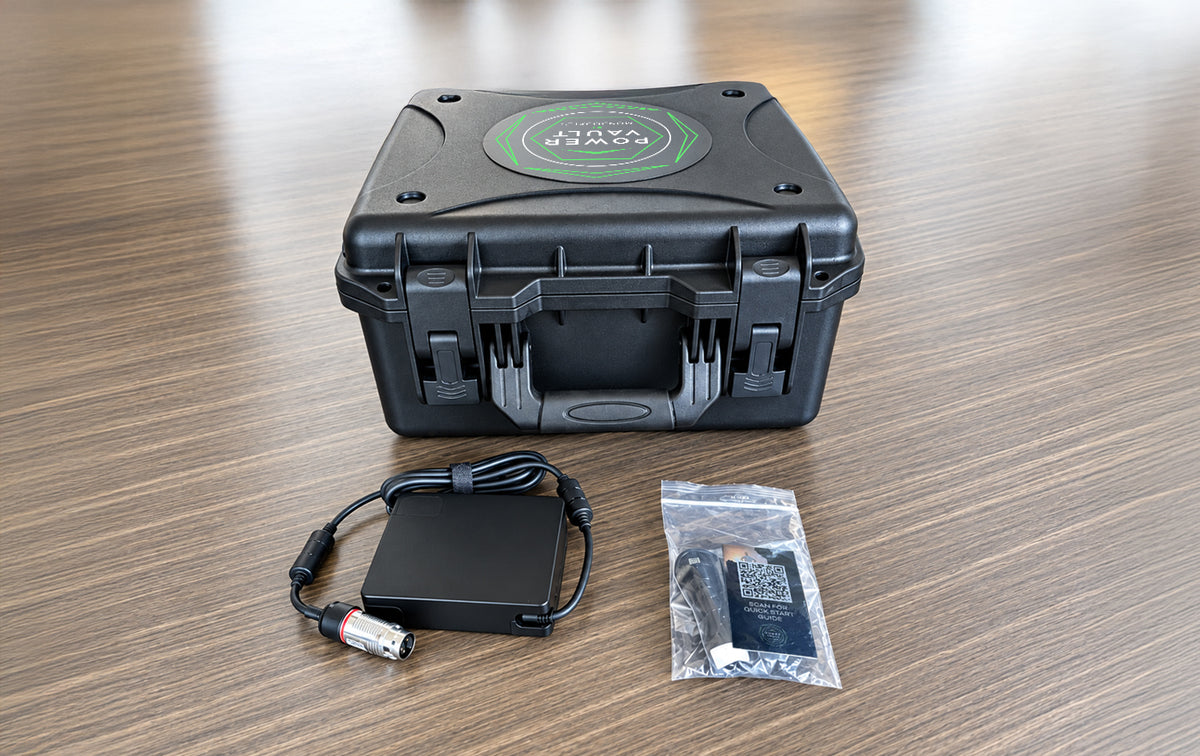
1. Unbox Your PowerVault
Inside the box you'll find your PowerVault system, power cable, and any accessories included with your order.
Before getting started, remove all packaging materials and verify that everything has arrived safely.
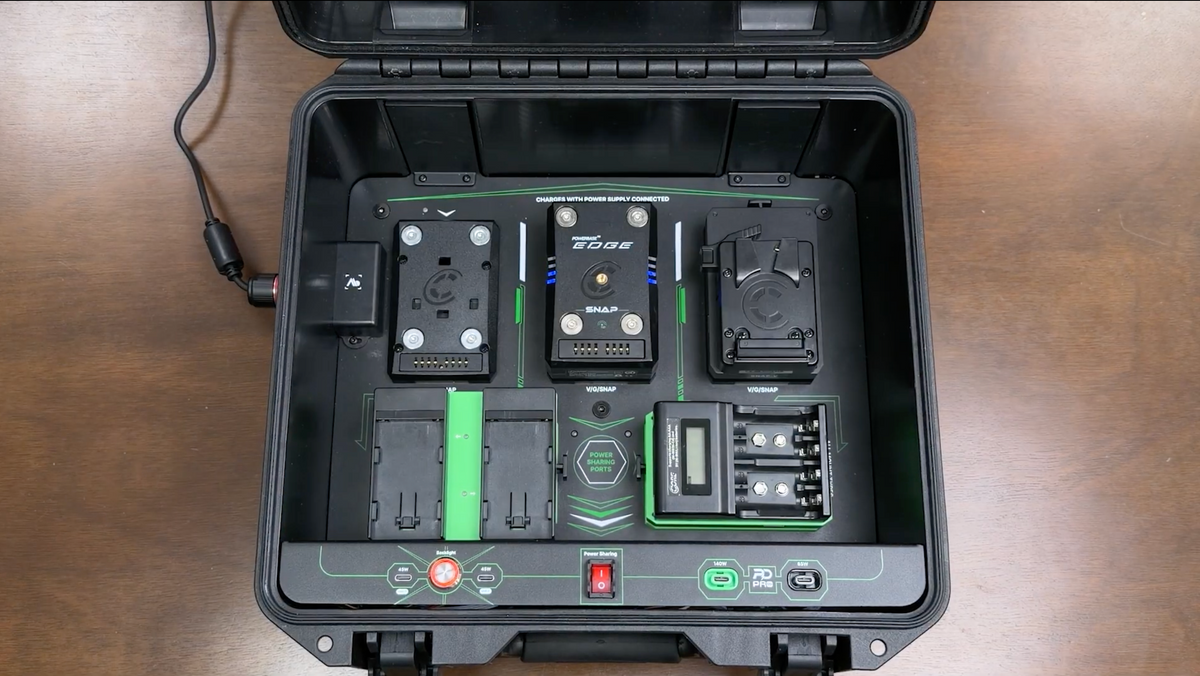
2. Install Your Battery Adapters
PowerVault's Snap Charge Adapters magnetically attach to each charging bay for fast installation, then automatically lock into place for a secure connection.
The top three bays support V-Mount, G-Mount, and SNAP battery packs, while the lower two bays are designed for the green color-coded adapters. To remove an adapter, simply press the release button and pull it free.
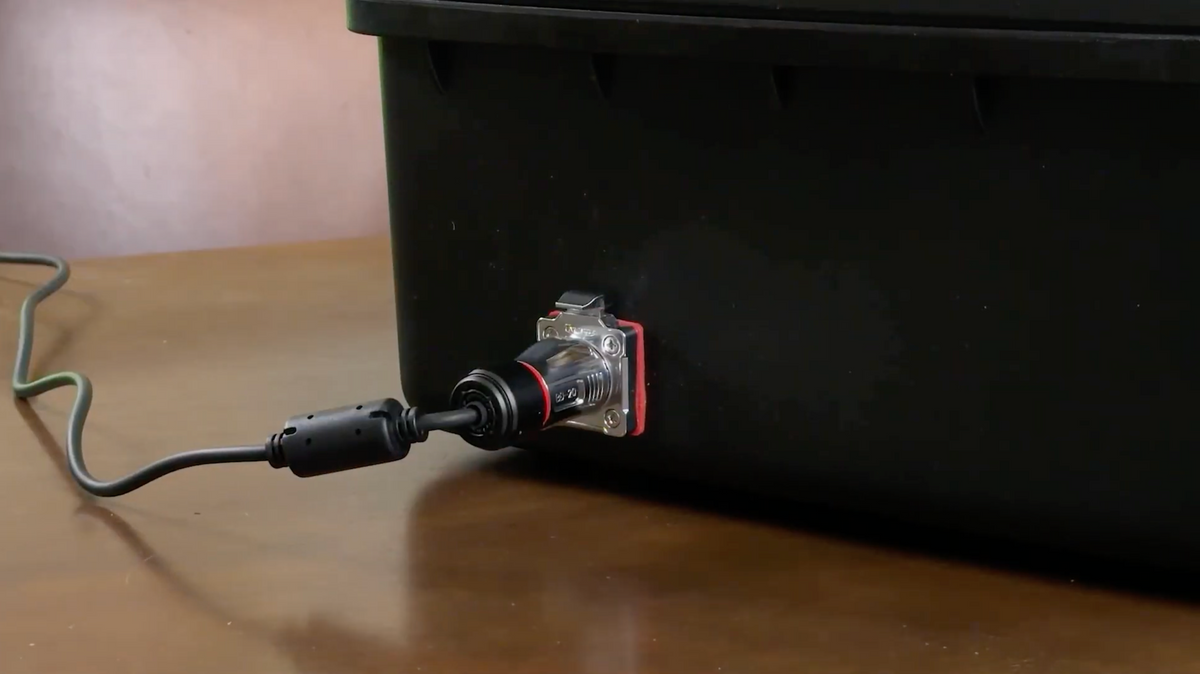
3. Power On & Connect
Connect PowerVault to AC power and press the power button.
Once powered on, your system is ready to begin charging compatible batteries.
Watch the Quick Start Walkthrough
FAQs
1. How do I install and remove SNAP Charge Adapters?
SNAP Charge Adapters allow you to configure PowerVault for different battery types. Position the adapter over the desired SNAP interface and simply “drop it in.” The magnetic connection will automatically align the adapter, while the mechanical latch locks it securely into place. To remove or change an adapter, depress the release lever and lift the adapter from the PowerVault.
2. How do I install a tracking tag?
Every PowerVault includes a discreet tracking tag compartment designed to accommodate an Apple AirTag® or similarly sized tracking tag. Using the included Allen wrench, remove the access plate on the right to access the compartment. Unscrew the tag enclosure, insert your tracking tag, then reinstall the enclosure and access plate securely. For a visual guide, click here.
3. What batteries are compatible with PowerVault?
PowerVault supports a wide range of professional and consumer battery formats through interchangeable SNAP Charge Adapters, including:
V-Mount
G-Mount
Core SWX SNAP packs
Sony® BP-U
Sony® L-Series
Sony® NP-FZ100
Sony® NP-SA100 (coming late Q4 2026)
Canon® BP-A
Canon® LP-E6
Panasonic® LUMIX BLK22
FUJIFILM® NP-W235
AA, AAA and 9V batteries
We are continually expanding the PowerVault adapter ecosystem to support additional battery formats.
4. How does charging work when multiple batteries are connected?
PowerVault automatically manages charging across its battery bays. The three upper bays accommodate V/G/SNAP Packs, while the two lower GREEN SNAP bays also support stacked V/G/SNAP packs as well as GREEN 2 position battery charge adapters and AA/AAA/9V.
Simply connect your batteries and PowerVault will manage charging automatically based on the batteries installed and available charging power.
5. What do the PowerVault status lights and indicators mean?
PowerVault’s integrated status indicators provide at-a-glance information on charging and system operation. A blinking LED indicates when a battery is actively charging and when charging is complete. Dual-battery SNAP Charge Adapters feature their own individual LED status indicators, while the AA/AAA/9V adapter uses an integrated LCD to display charging status.
6. What is Power Sharing Mode, and when should I use it?
Power Sharing allows PowerVault to use energy from the top row of connected batteries to support the system and its power outputs when AC power is unavailable. Enable Power Sharing when you want to use PowerVault as a portable power source away from AC power.
7. How do I use the USB-C and PD Pro power outputs?
Connect your USB-C device to the appropriate PowerVault output. PowerVault features multiple USB-C connections, including high-power PD Pro ports for compatible professional equipment, laptops and other USB-C devices. Power is automatically negotiated with the connected device, so no manual voltage selection is required.
8. What if I’m traveling and need a different AC plug for the included GaN charger?
The GaN charger included with PowerVault is designed for international use. If you’re traveling to a region that uses a different AC plug configuration, interchangeable regional AC adapters are available for the charger. Regional adapters are available here.
9. What should I do if a battery isn’t charging or PowerVault reports a fault?
First, make sure the battery and SNAP Charge Adapter are fully seated and that you’re using the correct adapter for the battery type. Remove and reinstall the battery, then check PowerVault’s status indicators. If the issue continues, try another compatible battery or bay to help isolate the problem. If PowerVault continues to report a fault, contact Core SWX Support.
10. Can I expand capacity?
Yes. SNAP packs can be stacked and used in parallel, allowing you to scale capacity and optimize both runtime and charging workflows.
11. How do I update PowerVault firmware?
From time to time, Core SWX may release firmware updates to enhance PowerVault performance, functionality, or compatibility. When an update is available, we’ll notify PowerVault owners by email and post the latest firmware and update instructions on the PowerVault Quick Start page.
When performing a firmware update, always use the included USB-A to USB-C cable. This cable is specifically provided to ensure the proper connection and power requirements during the update process. If your computer only has USB-C ports, use a USB-A to USB-C adapter with the included cable. Do not use a USB-C to USB-C cable for firmware updates.